Admin Two-Factor Login
Agency admins can be required to log in with an authenticator app (TOTP) in addition to their username and password.
Enabling it
On the agency Security page, set "Two-factor authentication (TOTP) for admin logins" to:
- Off — admins are not asked to use two-factor.
- Optional — admins are encouraged to set it up after logging in, but can skip it.
- Required — admins must set up an authenticator app and verify a code at every login.
Save the card with "Save changes". The "MFA prompt interval" on the same card controls how often a verified device must re-verify (every time, daily, weekly or monthly).
First login: enrollment
When Required (or after choosing to set it up), the admin login shows a QR code:
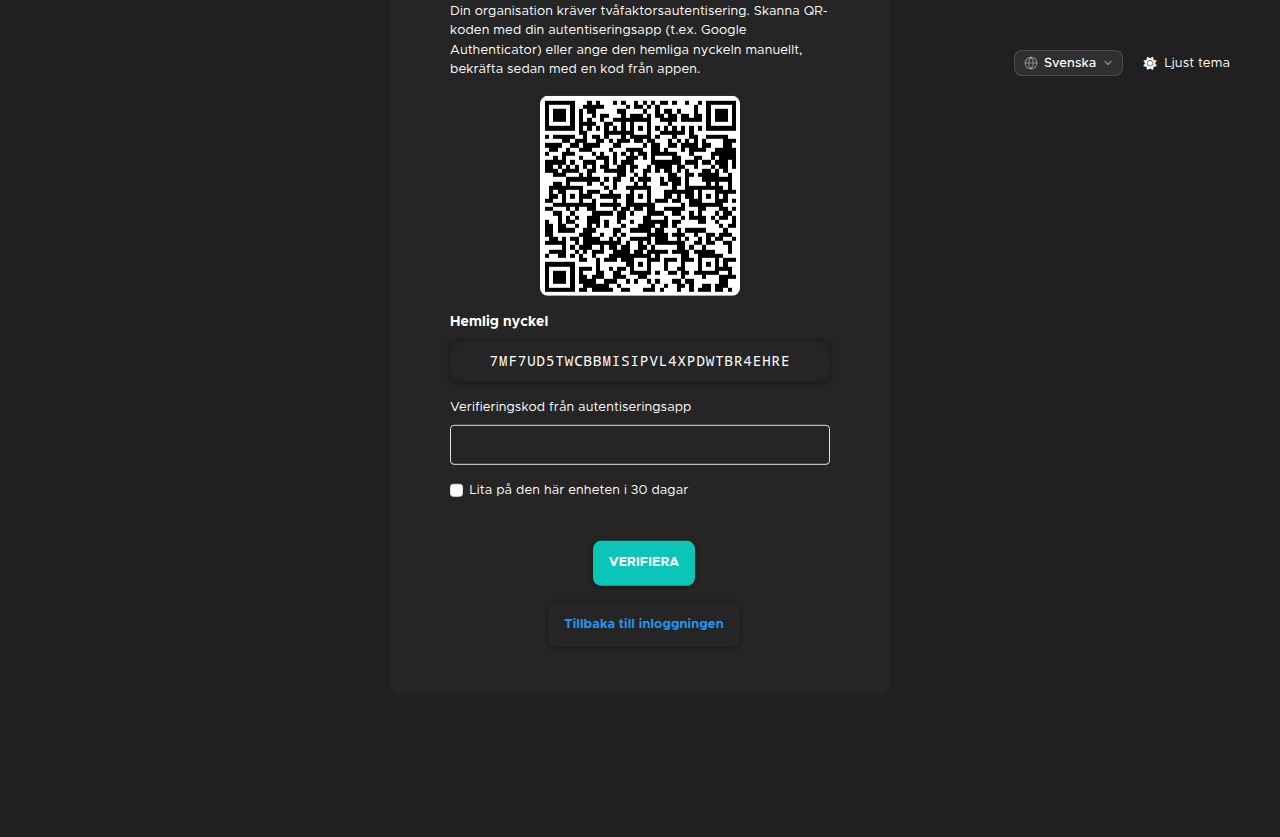
- Scan the QR code with an authenticator app (e.g. Google Authenticator), or enter the secret key manually.
- Enter the six-digit code from the app to confirm and finish logging in.
Later logins
Each login asks for a six-digit code from the authenticator app (codes from the neighbouring time window are accepted). With a daily, weekly or monthly prompt interval, the admin can check "Trust this device" to skip the code on that device until the interval expires.
Superuser reset
If an admin loses their device, a superuser can reset their two-factor authentication: on the Agency Admins page, use "Reset two-factor" in the row's two-factor column. The admin must set it up again at the next login.